DBSync Configuration
This assumes that you have already set up your FiveNet Cloud instance and have access to the instance settings.
In this guide, we will cover how you can enable and access the DBSync API details to use with your DBSync.
1. Navigate to your FiveNet Cloud Dashboard
Navigate to your FiveNet Cloud dashboard, if not logged in already make sure to login.
2. Access the Instance Settings
In the dashboard, click on your instance to access the instance settings.
3. Enable Sync API
In the instance settings, scroll down to the "FiveNet Config" section. Locate the "Sync API" section and enable it. This will enable the necessary APIs for the DBSync to be able to communicate with your FiveNet Cloud instance. When enabling the Sync API option, an API token will be generated automatically. You can view this token in the "Sync API Token" field.
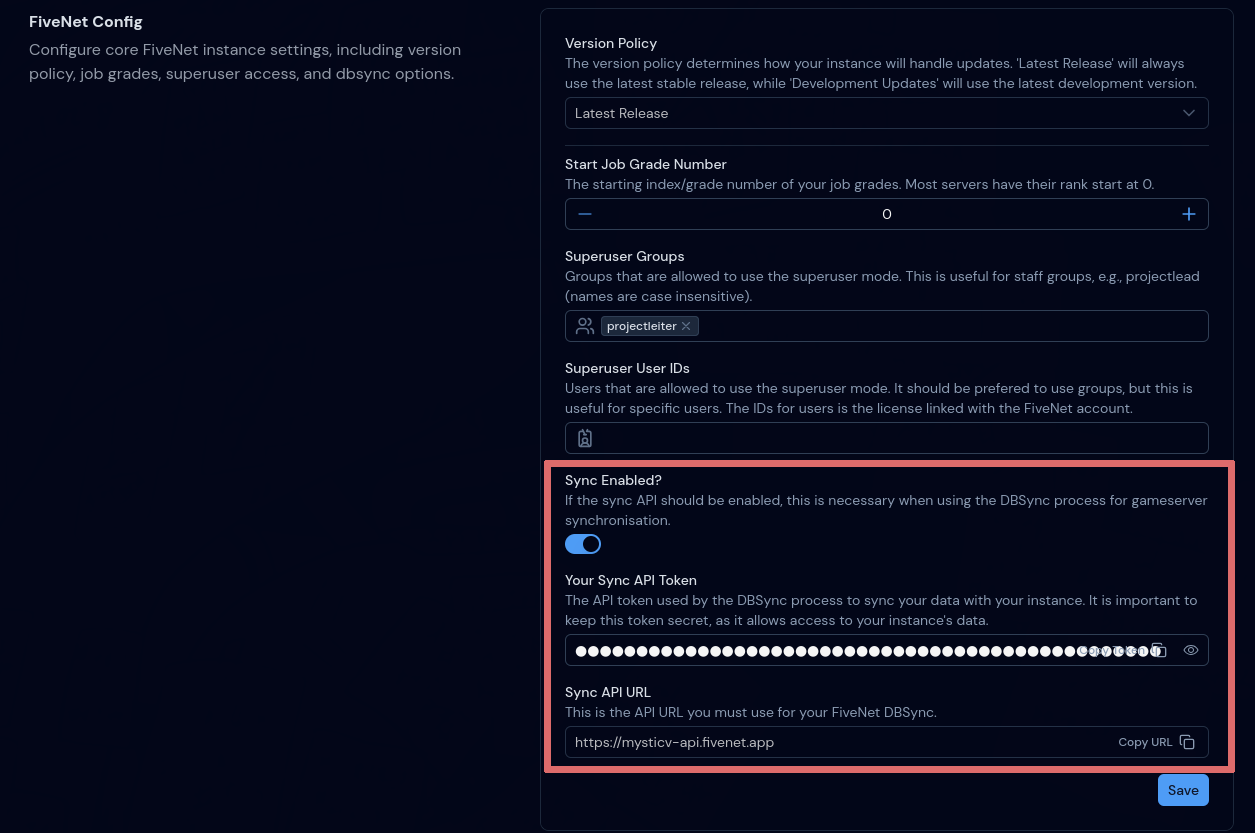
After enabling the Sync API, you will see the "Sync API URL" and "Sync API Token" fields populated with the necessary details. Make sure to copy the "Sync API token" and "Sync API URL" and store them securely, as you will need them to configure the DBSync component on your server.
Don't forget to save your changes by clicking the "Save" button at the bottom of the config section.
4. Configure DBSync
Follow the official DBSync documentation to set up the DBSync component on your server using the API URL and token you just obtained.
This is an example of how the destination: section in your DBSync configuration file should look like:
destination:
  # Replace with your actual FiveNet instance URL (without https://)
  url: "myfivenet.fivenet.app"
  token: "YOUR_SYNC_API_TOKEN_HERE"
  insecure: false
5. Test the DBSync Connection
Check the logs of your DBSync component to ensure that it is able to connect to your FiveNet Cloud instance successfully. You should see logs indicating that the connection was established and data is being synced.
Please note that if you need help with the database queries of the DBSync, you can open a Cloud support ticket on the FiveNet Discord server or send us an email at info@zerbytes.net.